> For the complete documentation index, see [llms.txt](https://docs.warpstream.com/warpstream/llms.txt). Markdown versions of documentation pages are available by appending `.md` to page URLs; this page is available as [Markdown](https://docs.warpstream.com/warpstream/agent-setup/different-object-stores.md).
# Object Storage Configuration
This page describes how to properly configure object storage for BYOC Agent deployments.
We highly recommend running the WarpStream Agent with a dedicated bucket for isolation; however, the WarpStream Agent will only write/read data under the `warpstream` prefix.
{% hint style="warning" %}
You should use a [VPC Endpoint](https://docs.aws.amazon.com/vpc/latest/privatelink/vpc-endpoints-s3.html) (or the equivalent in your Cloud Service Provider) to ensure the network traffic between the WarpStream Agent and your Object Storage bucket does not incur any data transfer cost, such as the cost incurred by using a NAT Gateway.
{% endhint %}
{% hint style="danger" %}
The WarpStream Agent manages all data in the object storage `warpstream` directory. It is extremely important that you allow it to do so alone and never delete files from the `warpstream` directory manually. Manually deleting files in the `warpstream` directory will effectively "brick" a virtual cluster and require that it be recreated from scratch.
{% endhint %}
## Bucket URL Construction
The `bucketURL` flag is the URL of the object storage bucket that the WarpStream Agent should write to. See the table below for how to configure it for different object store implementations.
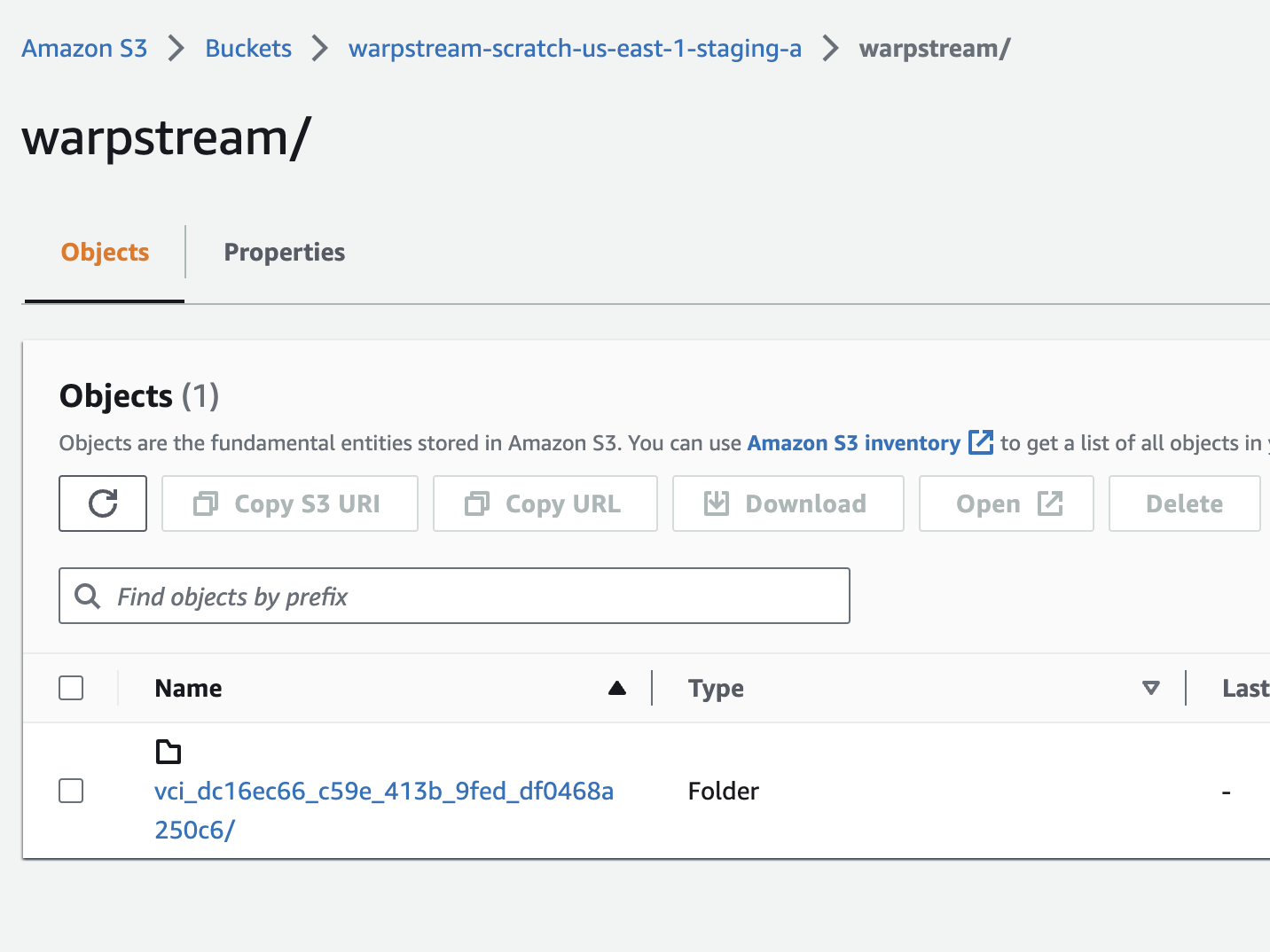
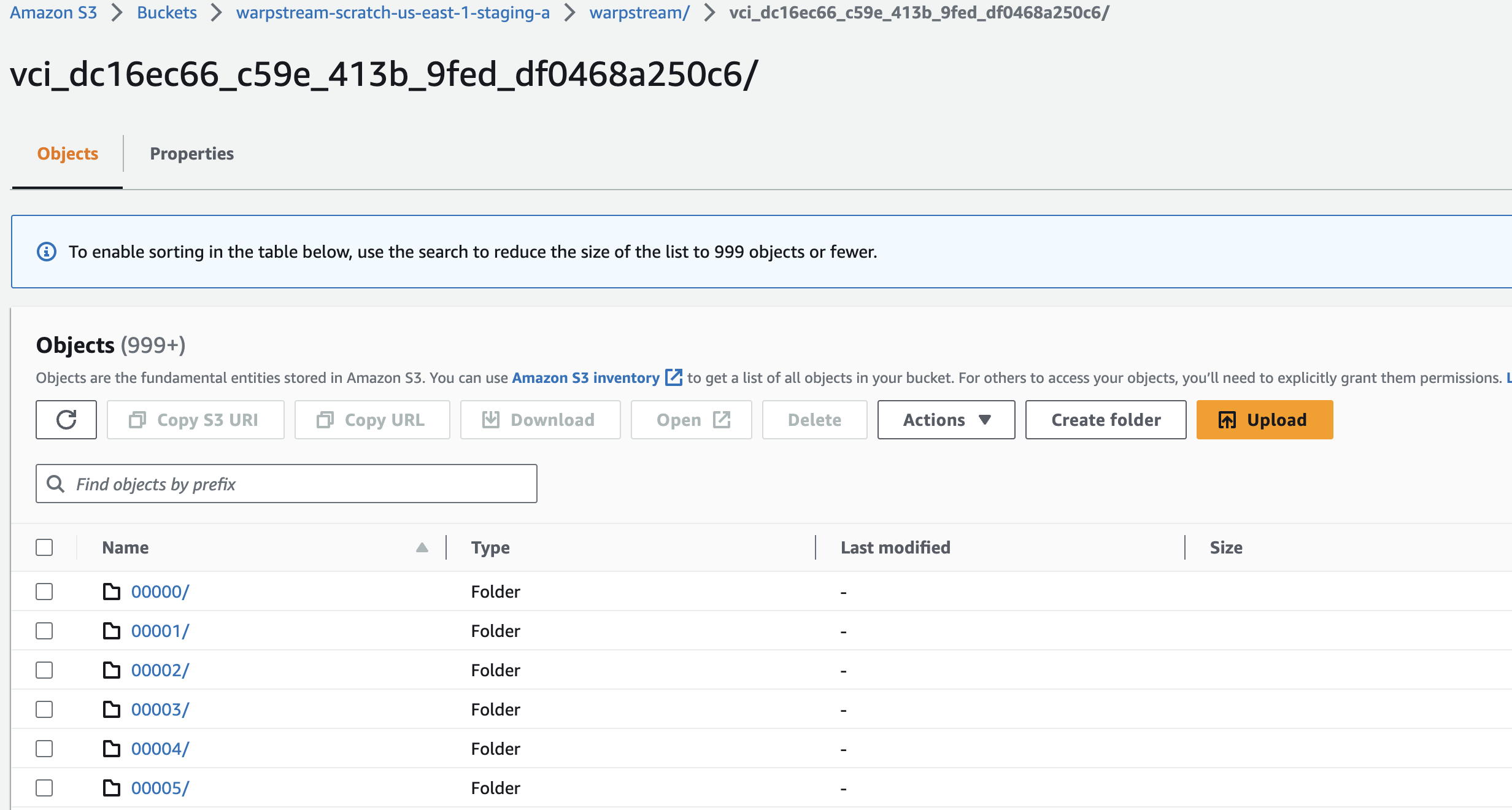
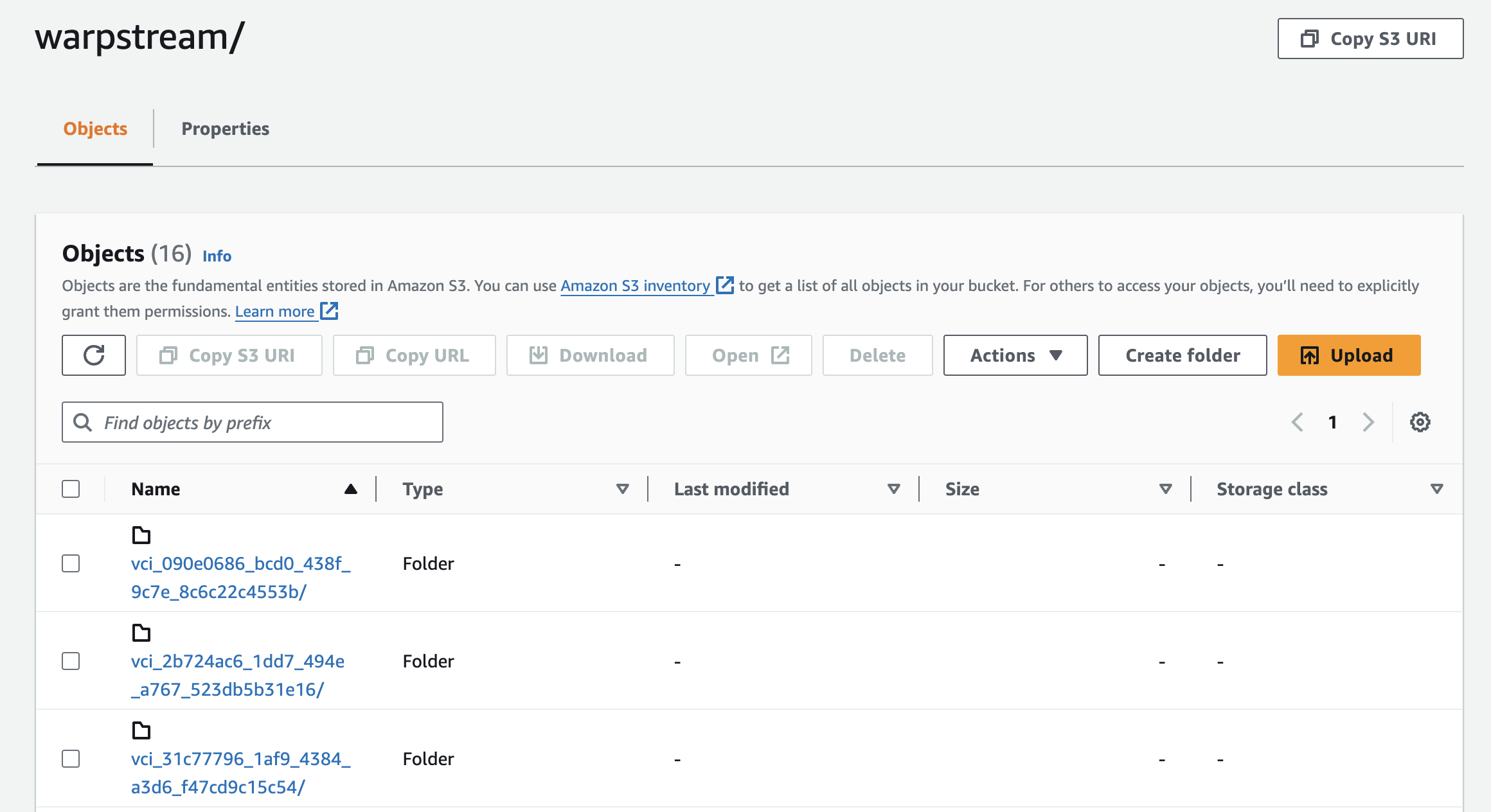
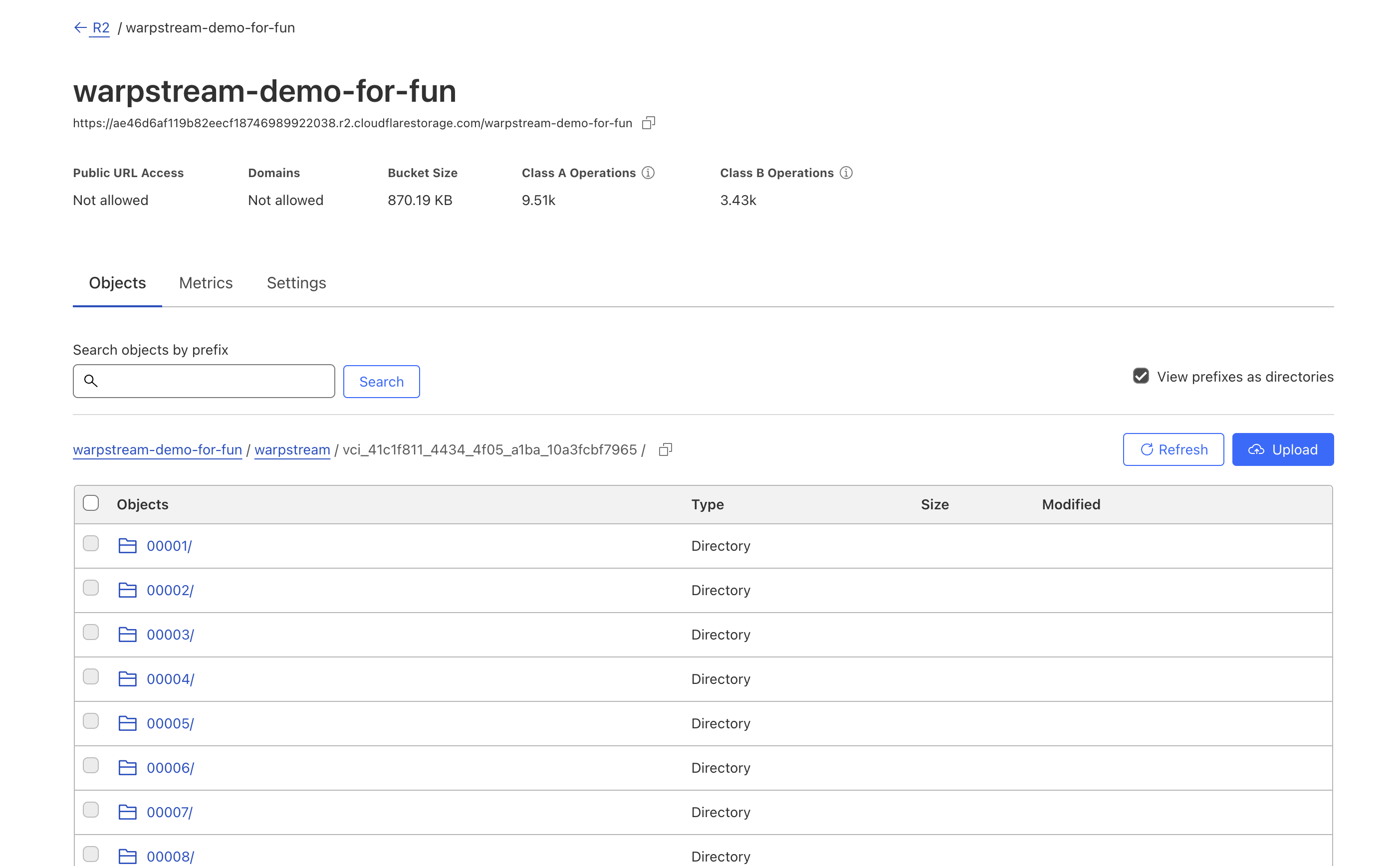
Note that the WarpStream Agents will automatically write all of their data to a top-level `warpstream` prefix in the bucket. In addition, each cluster will write its data to a cluster-specific prefix (derived from the cluster ID) within the `warpstream` prefix so multiple WarpStream clusters and schema registries can share the same object storage bucket without issue.
An S3 bucket with 16 different cluster prefixes under the top-level warpstream prefix.
{% tabs %}
{% tab title="AWS S3" %}
Format: `s3://$BUCKET_NAME?region=$BUCKET_REGION`
Example: `s3://my_warpstream_bucket_123?region=us-east-1`
The WarpStream Agent embeds the official AWS Golang SDK V2 so authentication/authorization with the specified S3 bucket can be handled in [any of the expected ways, like using a shared credentials file, environment variables, or simply running the Agents in an environment with an appropriate IAM role with Write/Read/Delete/List permissions on the S3 bucket.](https://docs.aws.amazon.com/sdk-for-go/v2/developer-guide/configure-gosdk.html#specifying-credentials)
**Assume Role**
If you want to use an `AssumeRole` provider to authenticate, you can add the `WARPSTREAM_BUCKET_ASSUME_ROLE_ARN_DEFAULT` environment variable to your Agent. For example:
{% code overflow="wrap" %}
```bash
WARPSTREAM_BUCKET_ASSUME_ROLE_ARN_DEFAULT=arn:aws:iam::103069001423:role/YourRoleName
```
{% endcode %}
**Manually Providing Credentials**
In general, we recommend using IAM roles whenever possible. However, if you want to provide object storage credentials manually then you'll need to set the following environment variables:
{% code overflow="wrap" %}
```bash
AWS_ACCESS_KEY_ID=YOUR_AWS_ACCESS_KEY_ID
AWS_SECRET_ACCESS_KEY=YOUR_AWS_SECRET_ACCESS_KEY
```
{% endcode %}
Environment variables can be set in our K8s chart using the `extraEnvs` and `extraEnvsFrom` fields in the [charts values.yaml](https://github.com/warpstreamlabs/charts/blob/main/charts/warpstream-agent/values.yaml).
{% endtab %}
{% tab title="GCP GCS" %}
Format: `gs://$BUCKET_NAME`
Example: `gs://my_warpstream_bucket_123`
The WarpStream Agent embeds the official GCP Golang SDK so authentication/authorization with the storage bucket can be handled [in any of the expected ways](https://github.com/googleapis/google-cloud-go#authorization).
{% hint style="warning" %}
By default the WarpStream Agents use [gRPC direct connectivity](https://docs.cloud.google.com/storage/docs/direct-connectivity) to achieve the best performance and lowest latency. Direct connectivity has some networking [requirements](https://docs.cloud.google.com/storage/docs/direct-connectivity#requirements) that may not be desired in all environments and does not support [GCP Private Service Connect](https://docs.cloud.google.com/vpc/docs/private-service-connect). If required, direct connectivity can be disabled by setting the `WARPSTREAM_GCS_ALLOW_DIRECT_CONNECTIVITY` environment variable to `false`, however your agents may not be able to achieve maximum performance and lowest latency.
{% endhint %}
{% endtab %}
{% tab title="Azure Blob Storage" %}
Format: `azblob://$CONTAINER_NAME?storage_account=$STORAGE_ACCOUNT`
Example: `azblob://my_warpstream_container_123?storage_account=my_storage_account_456`
The WarpStream Agent embeds the official Azure Golang SDK which expects one of the two following environment variables to be set: `AZURE_STORAGE_KEY` or `AZURE_STORAGE_SAS_TOKEN`. Alternatively, you can use an Azure AD / managed identity / service principal.
{% endtab %}
{% tab title="Memory" %}
{% hint style="danger" %}
For testing and local development only. All data will be lost once the Agent shuts down.
{% endhint %}
Example: `mem://my_memory_bucket`
{% endtab %}
{% tab title="File" %}
{% hint style="danger" %}
For testing and local development only. The file store implementation is **not** robust.
{% endhint %}
Format: `file://$PATH_TO_DIRECTORY`
Example: `file:///tmp/warpstream_tmp_123`
{% endtab %}
{% endtabs %}
### S3-compatible Object Stores (MinIO, Ceph, R2, Oracle Cloud, Tigris, etc)
If you're using an "S3 compatible" object storage service other than Amazon S3, such as MinIO, Ceph Object Gateway, Cloudflare R2, Oracle Cloud Object Storage, Linode Object Storage, or Alibaba Object Storage, you will need to manually provide credentials as environment variables. You must also configure the S3 client to construct the appropriate URL based on the API compatibility. Detailed instructions for each provider are listed below:
{% tabs %}
{% tab title="MinIO" %}
If you have a MinIO docker container running locally on your machine on port 9000, you can run the Agent like this after creating an Access Key in the MinIO UI:
The MinIO team has a [more detailed integration guide](https://blog.min.io/streamlining-data-streaming-a-guide-to-warpstream-and-minio/) on their website as well. Note that the region query argument is a no-op, but required to pass validation in the S3 SDK.
{% endtab %}
{% tab title="Ceph" %}
WarpStream connects to [Ceph Object Gateway (RGW)](https://docs.ceph.com/en/latest/radosgw/s3/) through its S3-compatible API. Create a dedicated bucket and an RGW user with read, write, delete, and list access to that bucket, then provide the user's S3 access key and secret key to the Agent.
Use path-style addressing unless your RGW deployment is configured for [virtual-hosted-style access](https://docs.ceph.com/en/latest/radosgw/s3/commons/#bucket-and-host-name). The bucket URL has the following format:
`s3://?region=us-east-1&s3ForcePathStyle=true&endpoint=`
The endpoint must include the scheme and port, if applicable. The region is required by the AWS SDK but is not used by RGW. For example:
{% code overflow="wrap" %}
```bash
AWS_ACCESS_KEY_ID="YOUR_CEPH_ACCESS_KEY" \
AWS_SECRET_ACCESS_KEY="YOUR_CEPH_SECRET_KEY" \
warpstream demo \
-bucketURL "s3://warpstream?region=us-east-1&s3ForcePathStyle=true&endpoint=https://rgw.example.com"
```
{% endcode %}
For an Agent deployment, configure the same values with environment variables:
```yaml
config:
bucketURL: "s3://warpstream?region=us-east-1&s3ForcePathStyle=true&endpoint=https://rgw.example.com"
extraEnvs:
- name: AWS_ACCESS_KEY_ID
valueFrom:
secretKeyRef:
name: ceph-s3-credentials
key: access-key
- name: AWS_SECRET_ACCESS_KEY
valueFrom:
secretKeyRef:
name: ceph-s3-credentials
key: secret-key
```
Configure the Ceph bucket according to the requirements in [Bucket Configuration](#bucket-configuration): do not enable object versioning, object lock, or a retention policy. Configure an S3 lifecycle rule to abort incomplete multipart uploads after seven days, and ensure that [RGW lifecycle processing](https://docs.ceph.com/en/latest/radosgw/config-ref/#lifecycle-settings) is enabled on at least one RGW daemon in each zone.
Some Ceph versions do not support the checksum headers sent by recent AWS SDK releases. If the Agent reports an `XAmzContentSHA256Mismatch` error while checking bucket access, set the following environment variable:
```bash
WARPSTREAM_DISABLE_S3_CHECKSUMS=true
```
{% endtab %}
{% tab title="Cloudflare R2" %}
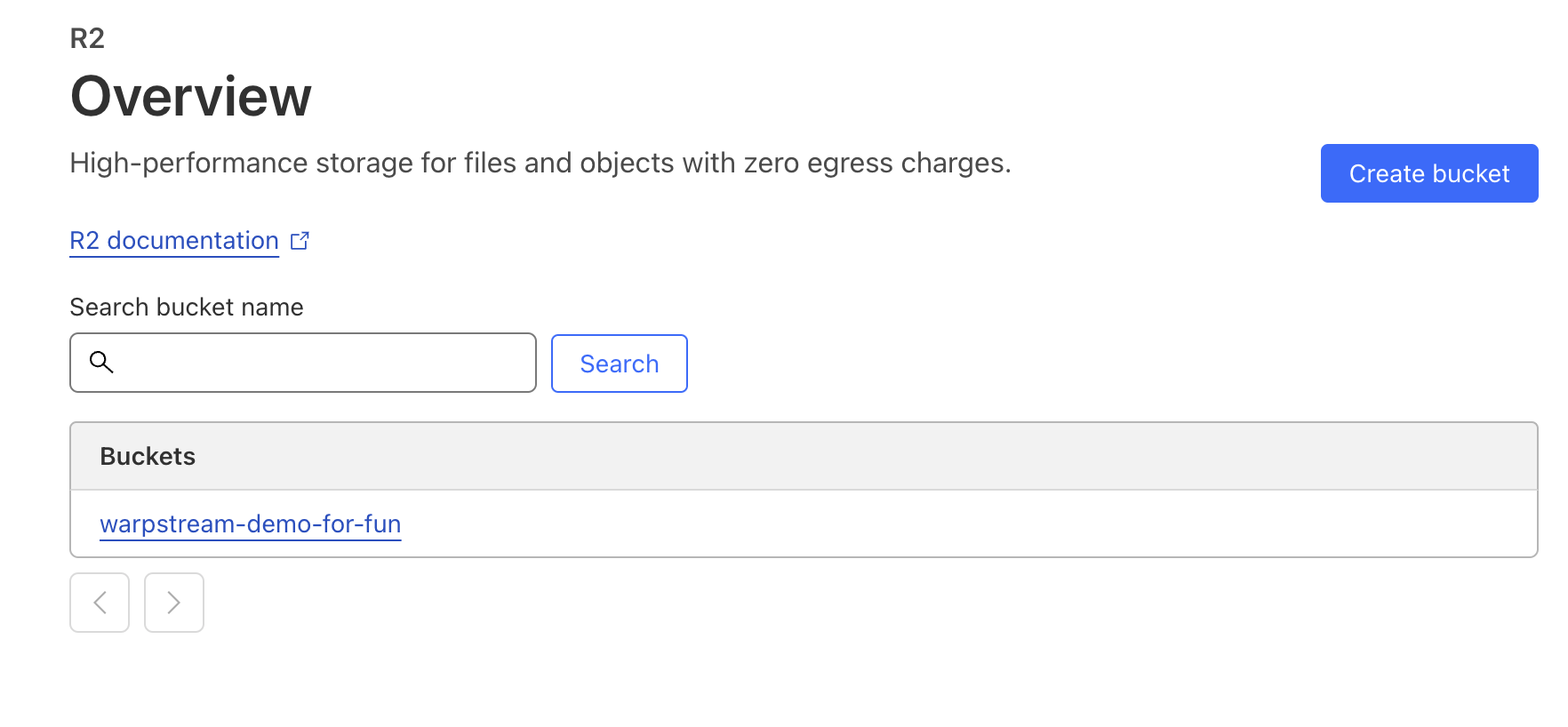
1. Create an account with [Cloudflare](https://dash.cloudflare.com).
2. Create an R2 bucket.
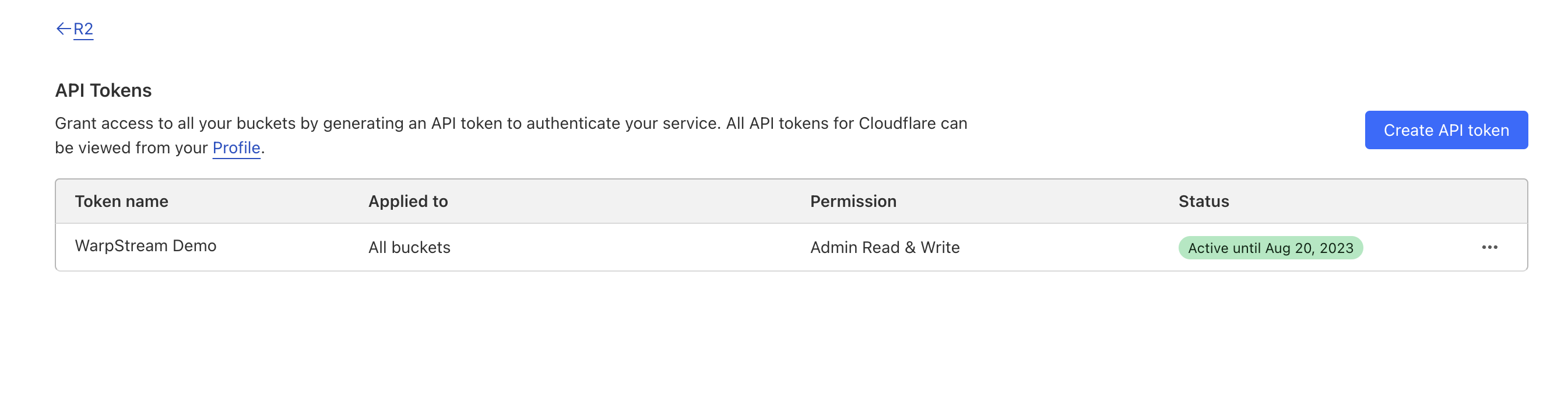
3. Create an R2 access token.
{% code overflow="wrap" %}
```bash
AWS_ACCESS_KEY_ID="XXX" \
AWS_SECRET_ACCESS_KEY="XXX" \
warpstream demo -bucketURL "s3://warpstream-demo-for-fun?s3ForcePathStyle=true®ion=auto&endpoint=https://XXX.r2.cloudflarestorage.com"
```
{% endcode %}
Note that if you run multiple WarpStream Agents this way in non-demo mode, then by default they need to be running on the same internal network. The reason for this is that if the Agents believe they're all running in the same "availability zone", they will attempt to form a distributed cache with each other to reduce R2 API GET requests.
However, if you wish to run multiple Agents in separate networks / regions, but still allow them to function as a single "Kafka Cluster", assign each one a dedicated availability zone.
For example, Agent 1:
{% code overflow="wrap" %}
```bash
WARPSTREAM_AVAILABILITY_ZONE="personal_laptop_chicago" \
AWS_ACCESS_KEY_ID="XXX" \
AWS_SECRET_ACCESS_KEY="XXX" \
warpstream agent -bucketURL "s3://warpstream-demo-for-fun?s3ForcePathStyle=true®ion=auto&endpoint=https://XXX.r2.cloudflarestorage.com"
```
{% endcode %}
Agent 2:
{% code overflow="wrap" %}
```bash
WARPSTREAM_AVAILABILITY_ZONE="personal_laptop_nashville" \
AWS_ACCESS_KEY_ID="XXX" \
AWS_SECRET_ACCESS_KEY="XXX" \
warpstream agent -bucketURL "s3://warpstream-demo-for-fun?s3ForcePathStyle=true®ion=auto&endpoint=https://XXX.r2.cloudflarestorage.com"
```
{% endcode %}
This signals to each Agent that they should not attempt to communicate with each other directly over the local network, and that each one should behave as if it were running in a different availability zone. However, data will still be able to be streamed from Chicago to Nashville (or vice versa) because the Agents will use R2 as "the network".
The net result of this is a "multi-region" Cluster that can read and write all topics/partitions from multiple regions at the same time.
{% endtab %}
{% tab title="Linode" %}
1. Create an account with [Akamai Linode](https://login.linode.com/signup)
2. Create a Bucket in [Object Storage](https://cloud.linode.com/object-storage/buckets) in the region of your choice.
3. Create a set of Object Storage [Access Keys](https://cloud.linode.com/object-storage/access-keys)
To set up a WarpStream Agent with Linode Object Storage, you need your access key, secret key, and the bucket URL. The bucket URL for Akamai Linode's S3-compatible storage requires the following structure:\
\
`s3://?s3ForcePathStyle=true&endpoint=.linodeobjects.com®ion=`
**Demo**
{% code overflow="wrap" %}
```bash
AWS_ACCESS_KEY_ID="XXX" AWS_SECRET_ACCESS_KEY="XXX" warpstream demo -bucketURL "s3://?s3ForcePathStyle=true&endpoint=.linodeobjects.com®ion="
```
{% endcode %}
**Playground**
{% code overflow="wrap" %}
```bash
AWS_ACCESS_KEY_ID="XXX" AWS_SECRET_ACCESS_KEY="XXX" warpstream playground -bucketURL "s3://?s3ForcePathStyle=true&endpoint=.linodeobjects.com®ion="
```
{% endcode %}
**Docker Configuration Example**
```bash
docker run -it --rm \
-e AWS_ACCESS_KEY_ID="YOUR_LINODE_BUCKET_ACCESS_KEY" \
-e AWS_SECRET_ACCESS_KEY="YOUR_LINODE_BUCKET_SECRET_KEY" \
public.ecr.aws/warpstream-labs/warpstream_agent \
agent \
-bucketURL "s3://?s3ForcePathStyle=true&endpoint=.linodeobjects.com®ion=" \
-agentKey "YOUR_AGENT_KEY" \
-defaultVirtualClusterID "YOUR_VIRTUAL_CLUSTER_ID" \
-region "YOUR_CLUSTER_REGION"
```
Make sure to replace the following placeholders in the commands above:
* `XXX`: Your Linode Object Storage access and secret keys.
* ``: The name of your bucket in Linode Object Storage.
* ``: The ID for your object storage cluster, such as us-ord-1. This value must be used for both the endpoint and region parameters.
To deploy agents in a Kubernetes cluster, use the official [Helm chart](https://github.com/warpstreamlabs/charts/tree/main/charts/warpstream-agent) and add the following configurations to the `values.yaml` file.
```yaml
extraEnv: [
{
name: "AWS_ACCESS_KEY_ID",
value: "YOUR_LINODE_BUCKET_ACCESS_KEY"
},
{
name: "AWS_SECRET_ACCESS_KEY",
value: "YOUR_LINODE_BUCKET_SECRET_KEY"
}
]
```
{% endtab %}
{% tab title="Alibaba Cloud" %}
1. Create an account with [Alibaba Cloud](https://account.alibabacloud.com/register/intl_register.htm).
2. Create a set of AccessKeys by creating a [RAM User](https://www.alibabacloud.com/help/en/ram/create-a-ram-user-1#task-187540).
3. Create a Bucket in Object Storage Service (OSS) in the region of your choice.
To set up a WarpStream Agent with Alibaba Cloud OSS, you need your AccessKey ID, AccessKey Secret, and the bucket URL. The bucket URL for Alibaba Cloud's S3-compatible storage requires the following structure, explicitly setting it to use virtual-hosted-style URLs:
`s3://?endpoint=oss-.aliyuncs.com®ion=&s3ForcePathStyle=false`
**Demo**
{% code overflow="wrap" %}
```bash
AWS_ACCESS_KEY_ID="XXX" AWS_SECRET_ACCESS_KEY="XXX" warpstream demo -bucketURL "s3://?endpoint=oss-.aliyuncs.com®ion=&s3ForcePathStyle=false"
```
{% endcode %}
**Playground**
{% code overflow="wrap" %}
```bash
AWS_ACCESS_KEY_ID="XXX" AWS_SECRET_ACCESS_KEY="XXX" warpstream playground -bucketURL "s3://?endpoint=oss-.aliyuncs.com®ion=&s3ForcePathStyle=false"
```
{% endcode %}
**Docker Configuration Example**
```bash
docker run -it --rm \
-e AWS_ACCESS_KEY_ID="YOUR_ALI_ACCESS_KEY_ID" \
-e AWS_SECRET_ACCESS_KEY="YOUR_ALI_ACCESS_KEY_SECRET" \
public.ecr.aws/warpstream-labs/warpstream_agent \
agent \
-bucketURL "s3://?endpoint=oss-.aliyuncs.com®ion=&s3ForcePathStyle=false" \
-agentKey "YOUR_AGENT_KEY" \
-defaultVirtualClusterID "YOUR_VIRTUAL_CLUSTER_ID" \
-region "YOUR_CLUSTER_REGION"
```
Placeholders
Make sure to replace the following placeholders in the commands above:
* `XXX`: Your Alibaba Cloud AccessKey ID and AccessKey Secret.
* ``: The name of your bucket in Alibaba Cloud OSS.
* ``: The ID for your object storage region.
To deploy agents in a Kubernetes cluster, use the official [Helm chart](https://github.com/warpstreamlabs/charts/tree/main/charts/warpstream-agent) and add the following configurations to the `values.yaml` file.
```yaml
extraEnv: [
{
name: "AWS_ACCESS_KEY_ID",
value: "YOUR_ALI_ACCESS_KEY_ID"
},
{
name: "AWS_SECRET_ACCESS_KEY",
value: "YOUR_ALI_ACCESS_KEY_SECRET"
}
]
```
{% endtab %}
{% tab title="IBM COS" %}
1. Create an [IBM Cloud Platform Account](https://cloud.ibm.com/).
2. Create an [instance of IBM Cloud Object Storage](https://cloud.ibm.com/docs/cloud-object-storage?topic=cloud-object-storage-provision).
3. Create a bucket with the [level of resiliency](https://cloud.ibm.com/docs/cloud-object-storage?topic=cloud-object-storage-endpoints) you want.
4. Create a set of Object Storage [API Keys](https://cloud.ibm.com/docs/cloud-object-storage?topic=cloud-object-storage-getting-started-cloud-object-storage#gs-bucket-policy).
To set up a WarpStream Agent with IBM Cloud Object Storage (COS), you need your access key, secret key, and the bucket URL. The bucket URL for IBM COS's S3-compatible storage requires the following structure:\
\
`s3://?endpoint=s3..cloud-object-storage.appdomain.cloud®ion=`
**Demo**
{% code overflow="wrap" %}
```bash
AWS_ACCESS_KEY_ID="XXX" AWS_SECRET_ACCESS_KEY="XXX" warpstream demo -bucketURL "s3://?endpoint=s3..cloud-object-storage.appdomain.cloud®ion="
```
{% endcode %}
**Playground**
{% code overflow="wrap" %}
```bash
AWS_ACCESS_KEY_ID="XXX" AWS_SECRET_ACCESS_KEY="XXX" warpstream playground -bucketURL "s3://?endpoint=s3..cloud-object-storage.appdomain.cloud®ion="
```
{% endcode %}
**Docker Configuration Example**
```bash
docker run -it --rm \
-e AWS_ACCESS_KEY_ID="YOUR_IBM_BUCKET_ACCESS_KEY" \
-e AWS_SECRET_ACCESS_KEY="YOUR_IBM_BUCKET_SECRET_KEY" \
public.ecr.aws/warpstream-labs/warpstream_agent \
agent \
-bucketURL "s3://?endpoint=s3..cloud-object-storage.appdomain.cloud®ion=" \
-agentKey "YOUR_AGENT_KEY" \
-defaultVirtualClusterID "YOUR_VIRTUAL_CLUSTER_ID" \
-region "YOUR_CLUSTER_REGION"
```
Make sure to replace the following placeholders in the commands above:
* `XXX`: Your IBM Service ID Object Storage API access and secret keys.
* ``: The name of your bucket in IBM Cloud Object Storage.
* ``: The ID for your object storage cluster, such as us-east. This value must be used for both the endpoint and region parameters.
To deploy agents in a Kubernetes cluster, use the official [Helm chart](https://github.com/warpstreamlabs/charts/tree/main/charts/warpstream-agent) and add the following configurations to the `values.yaml` file.
```yaml
extraEnv: [
{
name: "AWS_ACCESS_KEY_ID",
value: "YOUR_IBM_BUCKET_ACCESS_KEY"
},
{
name: "AWS_SECRET_ACCESS_KEY",
value: "YOUR_IBM_BUCKET_SECRET_KEY"
}
]
```
{% endtab %}
{% endtabs %}
### Using a Bucket Prefix
If you want the WarpStream Agents to store data in a specific prefix in the bucket, you can add the prefix as a query argument to the bucket URL. The prefix must terminate with a "/". For example:
```
s3://my_warpstream_bucket_123?region=us-east-1&prefix=my_prefix/
```
## Combining Multiple Buckets
The `bucketURL` can also point at several object storage buckets treated as one logical bucket, using a wrapper scheme:
* [**Multi Buckets**](/warpstream/agent-setup/different-object-stores/multi-buckets.md) (`warpstream_multi://`) — **replicate** every write across the buckets for durability and availability (for example, to survive a full region's object storage outage).
* [**Striped Buckets**](/warpstream/agent-setup/different-object-stores/striped-buckets.md) (`warpstream_stripe://`) — **stripe** writes so each object lives on exactly one bucket, to scale write throughput past a single bucket's request-rate ceiling.
## Bucket Configuration
{% hint style="danger" %}
The WarpStream bucket should not have any of the following features enabled on it:
1. Object retention policy
2. Object versioning
3. Soft deletion
An object retention policy could lead to data corruption if the cloud provider deletes a file that the WarpStream cluster still considers active. Object versioning and soft deletion will lead to massive storage cost inflation due to the fact that WarpStream periodically compacts (rewrites) data in the background.
{% endhint %}
WarpStream will manage the lifecycle of the objects, including deleting objects that have been compacted or have expired due to retention. Do not configure a retention policy on your bucket, and make sure that object versioning and object soft deletion are disabled.
We do however recommend configuring a lifecycle policy for cleaning up aborted multi-part uploads. This will prevent failed file uploads from the WarpStream Agent from accumulating in the bucket forever and increasing your storage costs. Below is a sample Terraform configuration for various different cloud providers:
{% tabs %}
{% tab title="AWS" %}
```hcl
resource "aws_s3_bucket" "warpstream_bucket" {
bucket = "my-warpstream-bucket-123"
tags = {
Name = "my-warpstream-bucket-123"
Environment = "staging"
}
}
resource "aws_s3_bucket_metric" "warpstream_bucket_metrics" {
bucket = aws_s3_bucket.warpstream_bucket.id
name = "EntireBucket"
}
resource "aws_s3_bucket_lifecycle_configuration" "warpstream_bucket_lifecycle" {
bucket = aws_s3_bucket.warpstream_bucket.id
# Automatically cancel all multi-part uploads after 7d so we don't accumulate an infinite
# number of partial uploads.
rule {
id = "7d multi-part"
status = "Enabled"
abort_incomplete_multipart_upload {
days_after_initiation = 7
}
}
# No other lifecycle policy. The WarpStream Agent will automatically clean up and
# deleted expired files.
}
resource "aws_s3_bucket_versioning" "warpstream_bucket_versioning" {
bucket = aws_s3_bucket.warpstream_bucket.id
versioning_configuration {
# Make sure versioning is disabled or it will massively inflate your storage costs.
status = "Disabled"
}
}
```
{% endtab %}
{% tab title="GCP" %}
```hcl
resource "google_storage_bucket" "warpstream_bucket" {
name = "my-warpstream-bucket-123"
location = "$REGION"
labels = {
Name = "my-warpstream-bucket-123"
Environment = "staging"
}
lifecycle_rule {
condition {
age = 7
}
action {
type = "AbortIncompleteMultipartUpload"
}
}
soft_delete_policy {
# Make sure soft deletion is disabled or it will massively inflate your storage costs.
retention_duration_seconds = 0
}
versioning {
# Make sure versioning is disabled or it will massively inflate your storage costs.
enabled = false
}
}
```
{% endtab %}
{% tab title="Azure" %}
```terraform
resource "azurerm_storage_container" "warpstream_container" {
name = "my-warpstream-container-123"
storage_account_id = "$STORAGE_ACCOUNT_ID"
container_access_type = "private"
}
```
{% endtab %}
{% endtabs %}
## Bucket Permissions
In addition to configuring the WarpStream buckets, you'll also need to make sure the Agent containers have the appropriate permissions to interact with the bucket.
Agents periodically inspect lifecycle configurations for supported bucket types so they can report policies that could corrupt your cluster. This inspection requires the provider-specific bucket-level read permissions listed below.
{% tabs %}
{% tab title="AWS" %}
Specifically, the Agents need permission to perform the following operations:
* `s3:PutObject`
* To create new files.
* `s3:GetObject`
* To read existing files.
* `s3:DeleteObject`
* So the Agents can enforce retention and cleanup of pre-compaction files.
* `s3:ListBucket`
* So the Agents can enforce retention and cleanup of pre-compaction files.
* `s3:GetLifecycleConfiguration`
* To inspect lifecycle policies and report policies that could corrupt your cluster.
S3 Express directory buckets require `s3express:GetLifecycleConfiguration` instead. See the [S3 Express configuration guide](/warpstream/kafka/advanced-agent-deployment-options/low-latency-clusters/s3-express.md#configuration) for the complete policy.
Below is an example Terraform configuration for an AWS IAM policy document that provides WarpStream with the appropriate permissions to access a dedicated S3 bucket:
```hcl
data "aws_iam_policy_document" "warpstream_s3_policy_document" {
statement {
sid = "AllowS3"
effect = "Allow"
actions = [
"s3:PutObject",
"s3:GetObject",
"s3:DeleteObject",
"s3:ListBucket",
"s3:GetLifecycleConfiguration"
]
resources = [
"arn:aws:s3:::my-warpstream-bucket-123",
"arn:aws:s3:::my-warpstream-bucket-123/*"
]
}
}
```
{% endtab %}
{% tab title="GCP" %}
The easiest way to configure bucket access in GCP is with the `roles/storage.objectUser` and `roles/storage.bucketViewer` role like so:
```hcl
resource "google_storage_bucket_iam_member" "warpstream_bucket_object_user" {
bucket = "my-warpstream-bucket-123"
role = "roles/storage.objectUser"
member = "$PRINCIPAL"
}
resource "google_storage_bucket_iam_member" "warpstream_bucket_viewer" {
bucket = "my-warpstream-bucket-123"
role = "roles/storage.bucketViewer"
member = "$PRINCIPAL"
}
```
However, if you need more granular permission sets, then WarpStream requires at least the following:
* `storage.objects.create`
* `storage.objects.delete`
* `storage.objects.get`
* `storage.objects.list`
* `storage.multipartUploads.*`
* `storage.buckets.get`
The `storage.buckets.get` permission allows the Agents to inspect each bucket's lifecycle configuration. The `roles/storage.bucketViewer` role in the example above includes this permission.
{% endtab %}
{% tab title="Azure" %}
The easiest way to configure bucket access in Azure is with the `Storage Blob Data Contributor` role like so:
```terraform
resource "azurerm_role_assignment" "warpsteam_blob_contributor" {
scope = azurerm_storage_container.warpstream_container.resource_manager_id
role_definition_name = "Storage Blob Data Contributor"
principal_id = "$PRINCIPAL_ID"
}
```
{% endtab %}
{% endtabs %}
## Migrating Between Object Storage Buckets
{% hint style="info" %}
the `-additionalBackgroundTasksBucketURLs` flag and `WARPSTREAM_ADDITIONAL_BACKGROUND_TASKS_BUCKET_URLS` environment variable require Agent version v814 or above.
Older versions of the Agent can still migrate buckets by using the `-additionalDeadscannerBucketURLs` flag or `WARPSTREAM_ADDITIONAL_DEADSCANNER_BUCKET_URLS` environment variable instead.
{% endhint %}
If you need to migrate a WarpStream cluster from one object storage bucket to another, follow these steps:
1. Make sure that the Agents [have permission](#bucket-permissions) to perform operations on both the old bucket and the new bucket.
1. Note if you're using the [Agent Groups](/warpstream/kafka/advanced-agent-deployment-options/agent-groups.md) functionality, you need to do this step for all Agent Groups before proceeding to step 2. In other words, **all** Agents in **all** groups of the cluster must be able to access the old bucket and the new bucket before the new bucket can start being used.
2. Deploy the Agents with [the `bucketURL` flag](#bucket-url-construction) set to the new bucket instead of the old one. This will cause the Agents to write all new files (both for ingestion and compaction) to the new bucket while still allowing them to read historical data from the old bucket.
1. You'll also need to set the `-additionalBackgroundTasksBucketURLs` flag or `WARPSTREAM_ADDITIONAL_BACKGROUND_TASKS_BUCKET_URLS` environment variable in the Agents to point to the old bucket so that the Agents continue to scan the old bucket for dead files to delete and ripcord sequences to ingest.
3. Wait until there are no more data files under the `warpstream` prefix in the old bucket.
For example, if you were migrating from AWS S3 bucket `foo` to AWS S3 bucket `bar` then you would redeploy the Agents from this configuration:
```bash
WARPSTREAM_BUCKET_URL=s3://foo?region=us-east-1
```
To this configuration:
```bash
WARPSTREAM_ADDITIONAL_BACKGROUND_TASKS_BUCKET_URLS=s3://foo?region=us-east-1
WARPSTREAM_BUCKET_URL=s3://bar?region=us-east-1
```
Then wait until all the files in the `foo` bucket under the `warpstream` prefix had been deleted. Once all the files had been deleted, you would then deploy the Agents one final time with this configuration:
```bash
WARPSTREAM_BUCKET_URL=s3://bar?region=us-east-1
```
## Kubernetes Workload Identity for Bucket Access
When running in Kubernetes in AWS, Azure, or GCP it is recommended to use Workload Identity to delegate access from the WarpStream Agent pods to the Object Storage bucket. This simplifies management of the object storage credentials and minimizes the risk of credential leaks.
{% tabs %}
{% tab title="AWS EKS" %}
Documentation: \
\
Example Terraform
```hcl
data "aws_iam_policy_document" "eks_service_account" {
statement {
effect = "Allow"
principals {
type = "Federated"
identifiers = [var.eks_oidc_provider_arn]
}
actions = ["sts:AssumeRoleWithWebIdentity"]
condition {
test = "StringEquals"
variable = "${replace(var.eks_oidc_issuer_url, "https://", "")}:sub"
values = ["system:serviceaccount:${var.kubernetes_namespace}:warpstream-agent"]
}
condition {
test = "StringEquals"
variable = "${replace(var.eks_oidc_issuer_url, "https://", "")}:aud"
values = ["sts.amazonaws.com"]
}
}
}
resource "aws_iam_role" "eks_service_account" {
name = "warpstream-agent"
assume_role_policy = data.aws_iam_policy_document.eks_service_account.json
}
data "aws_iam_policy_document" "eks_service_account_s3_bucket" {
statement {
effect = "Allow"
actions = [
"s3:ListBucket",
"s3:GetObject",
"s3:PutObject",
"s3:DeleteObject",
"s3:GetLifecycleConfiguration",
]
resources = [
"arn:aws:s3:::${var.bucketName}",
"arn:aws:s3:::${var.bucketName}/*",
]
}
}
resource "aws_iam_role_policy" "eks_service_account_s3_bucket" {
name = "warpstream-agent-s3"
role = aws_iam_role.eks_service_account.id
policy = data.aws_iam_policy_document.eks_service_account_s3_bucket.json
}
```
Example Configuration on our [Helm Chart](/warpstream/agent-setup/infrastructure-as-code/helm-charts.md)
```yaml
config:
bucketURL: s3://my-bucket-name
serviceAccount:
annotations:
"eks.amazonaws.com/role-arn": "arn:aws:iam::XXXXXXXXXXXX:role/warpstream-agent"
```
{% endtab %}
{% tab title="Azure" %}
Documentation: \
\
Example Terraform
```hcl
resource "azurerm_user_assigned_identity" "warpstream_agent" {
name = "warpstream-agent"
resource_group_name = var.resource_group_name
location = var.location
}
resource "azurerm_federated_identity_credential" "identity_credential" {
name = "warpstream-agent"
resource_group_name = var.resource_group_name
audience = ["api://AzureADTokenExchange"]
issuer = var.aks_oidc_issuer_url
parent_id = azurerm_user_assigned_identity.warpstream_agent.id
subject = "system:serviceaccount:${var.kubernetes_namespace}:warpstream-agent"
}
resource "azurerm_role_assignment" "reader_and_data_assigned_identity" {
scope = var.azure_container_resource_manager_id
role_definition_name = "Storage Blob Data Contributor"
principal_id = azurerm_user_assigned_identity.warpstream_agent.principal_id
}
```
Example Configuration on our [Helm Chart](/warpstream/agent-setup/infrastructure-as-code/helm-charts.md)
```yaml
config:
bucketURL: azblob://my-bucket-name
serviceAccount:
annotations:
"azure.workload.identity/client-id": "xxxxxxxx-xxxx-xxxx-xxxx-xxxxxxxxxxxx"
```
{% endtab %}
{% tab title="GCP" %}
Documentation: \
\
Example Terraform
```hcl
resource "google_service_account" "warpstream_agent" {
account_id = "warpstream-agent"
display_name = "Service Account Kubernetes"
}
resource "google_storage_bucket_iam_member" "gcs_access" {
bucket = var.bucket_name
role = "roles/storage.objectAdmin"
member = "serviceAccount:${google_service_account.warpstream_agent.email}"
}
resource "google_project_iam_member" "gcs_access_token_creator" {
project = var.project
role = "roles/iam.serviceAccountTokenCreator"
member = "serviceAccount:${google_service_account.warpstream_agent.email}"
}
resource "google_service_account_iam_binding" "workload_identity_binding" {
service_account_id = google_service_account.warpstream_agent.name
role = "roles/iam.workloadIdentityUser"
members = [
"serviceAccount:${var.project_id}.svc.id.goog[${var.kubernetes_namespace}/warpstream-agent]",
]
}
```
Example Configuration on our [Helm Chart](/warpstream/agent-setup/infrastructure-as-code/helm-charts.md)
```yaml
config:
bucketURL: gcs://my-bucket-name
serviceAccount:
annotations:
"iam.gke.io/gcp-service-account": "warpstream-agent@xxxxxxxxxx.iam.gserviceaccount.com"
```
{% endtab %}
{% endtabs %}
---
# Agent Instructions
This documentation is published with GitBook. GitBook is the documentation platform designed so that both humans and AI agents can read, navigate, and reason over technical content effectively. Learn more at gitbook.com.
## Querying This Documentation
If you need additional information that is not directly available in this page, you can query the documentation by asking a question.
Perform an HTTP GET request on the following URL with the `ask` and `goal` query parameters:
```
GET https://docs.warpstream.com/warpstream/agent-setup/different-object-stores.md?ask=&goal=
```
`ask` is the immediate question: it should be specific, self-contained, and written in natural language.
`goal` is what the user is ultimately trying to achieve, the reason they need the answer. Sharing it helps GitBook give you a better, more relevant answer. A goal is most helpful when it describes the outcome the user wants rather than restating the question. For example, with `ask=how do I create an API token`, a goal like `automate deployments from our CI pipeline` lets GitBook tailor the answer to that use case.
The response will contain a direct answer to the question and relevant excerpts and sources from the documentation.
Use this mechanism when the answer is not explicitly present in the current page, you need clarification or additional context, or you want to retrieve related documentation sections.